Power Up Equipment
Cold start power up after mains failure / Service Operations / or at Start-of-Day
NOTE: "The main electronics cabinet has been equipped with a power failure release main switch to ensure proper boot-up sequence of the computers. The following instructions are to be used after mains power to the main electronics cabinet has been off due to mains failure or because the power to the three isolation transformers in the IHR tank room has been disconnected e.g. for service operations".
Powering Up the Internal Helium Recycler (IHR) (cabinet T3)
- Make sure the valves are as per this Figure 7.38.
- The valves shouldn't have been changed from their defaults since MEG installation.
- Make sure the small Mode switch on the cryocooler compressor is set to remote control mode (position 2).
- Turn the main power switch on the cryocooler compressor to On.
- In the Helium Recycler cabinet, keep the UPS power button pressed down for a few seconds.
- Wait for the control PC to power up automatically.
- The control PC power-up takes about one minute.
- To verify that the system started up, monitor the LEDs on the door of the Helium Recycler Cabinet.
- The LED/s indicating the latest active operating mode come/s on.
- To continue normal operations, click the Normal Mode button on the Service GUI.
Powering Up the Main Electronics Cabinet (cabinet T2)
NOTE: The Main Electronics Cabinet (T2) is protected by a UPS (UPS21), situated in the IHR tank room (G24).
The Power Control Panel of the Main Electronics Cabinet has three switches. These MUST be powered on in the correct sequence.
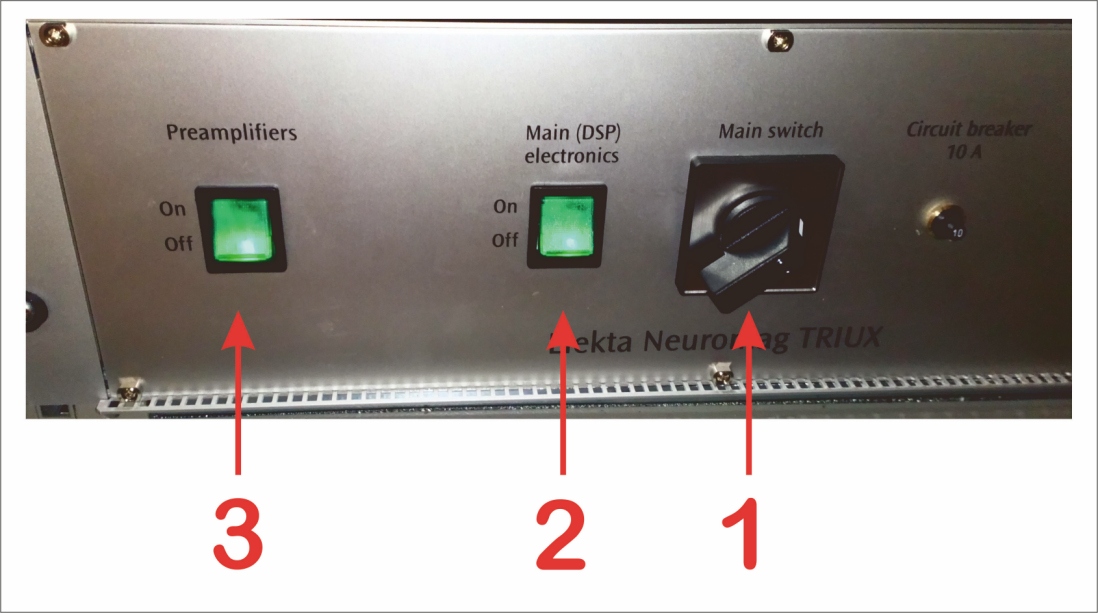
INDEX
1. Main switch (with no-mains release).
2. Main (DSP) Electronics (MEG & Bioamplifier/EEG) green rocker switch.
3. Preamplfiers (MEG & Bio/EEG) green rocker switch.
Procedure
- Boot/Power Up the DACQ Workstation ("Sinuhe") as shown below. Wait until it boots normally (shows Log In prompt).
- Power on the Eaton UPS, labelled "UPS21".
- Switch on the Mains socket powering the UPS21.
- The UPS front panel display illuminates, and shows a status of “UPS initializing ...”.
- Verify that the UPS then transfers to Standby mode (“UPS on standby”).
- Press the "On/Off" button on the front panel for at least one second.
- The UPS front panel display changes status to “UPS starting ...”.
- Check the UPS front panel display for active alarms or notices. Resolve any active alarms before continuing.
- Verify that the green Power On LED illuminates solid, indicating that the UPS is operating normally.
- Switch on the equipment that is connected to the UPS21 (see below).
- Switch on the Mains socket powering the UPS21.
- Switch on the Watchguard Firewall and Network Switch, in the Side Room Comms cabinet. Wait until both have started up, indicated by any Self test and Fail LEDs extinguishing
- Both Mains plugs are attached to sockets protected by UPS21. Make sure both socket switches are turned on.
- On the Power Control Panel of the Main Electronics Cabinet, ensure that the green rocker switches, Preamplifiers (3), Main (DSP) Electronics (2), are in Off position.
- Inside the Main Electronics Cabinet, the individual power supply units are connected to outlet socket strips located in the rear of the cabinet. Ensure that the power cords are in place.
- Switch on the Main Electronics Cabinet power by turning the Main switch (1) on the Power Control Panel to the On position. The switch will automatically turn back into the Off position if Mains voltage is too low.
- After turning the Main switch (1) to the On position, wait until the ethernet switch has started up, indicated by the Self test and Fail LEDs extinguishing.
- Bootup takes about one minute. The cabinet roof fans and auxiliary equipment, e.g the intercom, should also now power up.
- Switch On the Main (DSP) Electronics green rocker switch (2) from the Power Control Panel.
- Wait until all the controller cards in the racks show steady green Run LEDs and the red Fail LEDs are off.
- Boot-up takes about 30—60 seconds.
If the bootup fails, open the back door of the main electronics cabinet and check the indicator LEDs of individual power supplies.
The Main (DSP) Electronics racks must be booted before the Preamplifiers because the Preamplifiers are controlled by one of the main electronics boards. - Switch On the Preamplifier green rocker switch (3) from the Power Control Panel.
- Run a Restart Acquisition Programs (RAP) by double-clicking its icon in the Maintenance toolbox on the DACQ Workstation ("Sinuhe").
NOTE: Each time the MEG front end is powered it must be initialized by running a RAP.
Also the latest tuning file must be loaded, via Tuner.
NOTE: For optimum noise performance, let the Preamplifiers stabilize for approximately 1-2 hours before commencing MEG measurements.
Powering Up the contents of the STIM Cabinet (cabinet T1) & MSR Lights/Lifting Motor
- Switch on the filtered 6way Mains extension (green rocker switch).
- This will power on the MSR Patient Camera/IR Light and the STI102 box.
- Turn on equipment in the STIM Cabinet (T1) e.g. Digitimer Stimulator, via their power buttons/switches as required.
- Switch on the MSR Lighting UPS...
- Switch on the Mains socket.
- Press the Power button on the front panel.
- The green "On Line" indicator flashes.
- The yellow "On Battery" indicator lights while the Self-test is being performed.
- When Self-Test has successfully completed, only the green "On Line" indicator will be lit.
- Check the MSR lights come on when the light switch is depressed.
- Turn on the gantry lifting motor/traffic lights (Mains plug on the back wall, behind the MSR).
- Check the gantry moves as expected e.g. between liquefaction (25) and Upright (60).
Powering Up DACQ & Participant Logging Computer (PLC)
NOTE: The DACQ and its speakers are plugged into Control Room double power sockets protected by a UPS (UPS20), situated in the IHR tank room (G24).
The PLC is plugged into the UPSs found on the floor of the Control Room (2 x APC Back-UPS 1400s).
Power on the Eaton UPS, labelled "UPS20", in the IHR tank room
- Switch on the Mains socket powering the UPS.
- The UPS front panel display illuminates and shows a status of “UPS initializing ...”
- Verify that the UPS transfers to Standby mode (“UPS on standby ...”).
- Press the On/Off button on the front panel for at least one second.
- The UPS front panel display changes status to “UPS starting ...”.
- Check the UPS front panel display for active alarms or notices. Resolve any active alarms before continuing.
- Verify that the green Power On LED illuminates solid, indicating that the UPS is operating normally.
- Turn on the equipment that is connected to the UPS (see below).
Note
- TO BE PERFORMED BY MEG SUPPORT ONLY!!
- On one occasion, after power on, UPS20 was shown to be On, but the double sockets appeared to have no power (DACQ wouldn't power up). To fix ...
- Make sure DACQ & Monitor are off.
- Trip (and reset) the UPS20 trip switch in the grey fuse box in the IHR Tank Room (Incomer 1, L2)
- UPS20 may beep, and switch to internal battery power briefly.
- Check to see if power is now getting to the protected double power sockets.
- Turn on DACQ Speakers, green Power LED should light.
- If not, move DACQ & Speakers to unprotected sockets and power on.
- Have UPS examined for possible fault.
Powering up the DACQ Console, "Sinuhe"
- Switch on the Mains sockets powering the DACQ, Monitor & Speakers.
- Power on the Monitor and Speakers.
- Press the Power button on the right side of the DACQ system unit.
- Follow the boot sequence for any erors - startup may initialise a disk check, let it proceed.
- Once the Login screen appears, log in and run a RAP, followed by Loading the latest Tuning file
Powering Up the Participant Logging Computer (PLC).
- Turn on the two UPS (2 x APC Back-UPS 1400s) on the Control Room floor.
- Switch on the Mains supply at the wall sockets for the two UPSs.
- Press and hold the Power button for approximately 0.5 to 1 second. The Unit should beep, indicating it is turning on.
- Front panel green "On Line" LED should light, confirming the UPS is powered and operating normally.
- Switch on the Monitor.
- Press the power button on the front of the PLC.
- After a while the Monitor should display the first Participant Logging information screen.
Powering Up the Stim PC (CHBH-ST-MEG-W02)
2 x APC Back-UPS 1400s may already be powered, if PLC has been turned on already.
- Turn on the two UPS (2 x APC Back-UPS 1400s) on the Control Room floor.
- Switch on the Mains supply at the wall sockets for the two UPSs.
- Press and hold the Power button for approximately 0.5 to 1 second. The Unit should beep, indicating it is turning on.
- Front panel green "On Line" LED should light, confirming the UPS is powered and operating normally.
- Switch on/check (as required) associated equipment plugged into the UPSs.
- PROPixx Controller (Monitor is attached to this)
- KVM (for keyboard/Mouse)
- Network Mini Hub (EyeLink connection)
- SOUNDPixx (if required)
- Switch on the Monitor.
- Switch on the PC.
- CHBH-ST-MEG-W02 should boot into Windows automatically, no password required.
- Switch on the PROPixx Projector (as necessary).
As the DP PROPixx Adapter is negotiating with the KVM, the Monitor screen will flash 8 times at 2sec intervals then settle down.
This is expected functionality and will happpen every time the Adapter, or PC, are repowered/rebooted.
Powering Up the EyeLink 1000 Plus PC
Stim PC will need to be powered up to allow network communication to the EyeLink PC (both APC Back-UPS 1400s will need to be powered).
- Switch on 6-way bar plug on table alongside EyeLink Host PC (to power Host PC and EyeLink camera).
- Turn on EyeLink 1000 Plus Host PC & Monitor.
- Select EyeLink with mouse, or just wait.
- Confirm EyeLink software starts.
- If only a Power Up check was required, exit to EyeLink File Manager and shutdown Host PC.
- Switch off Monitor and 6-way bar plug.
- If EyeLink is to be used when Acquiring data, follow up until Step 4., then follow ...
EyeLink Operations Guide, and Charging EyeLink batteries as required.