How to correctly fill in the MEG Operator Checklist
An AD-joined University PC must be used.
Although having a Birmingham email address, don't use a private/personal desktop/laptop unless it's joined to the University domain.
- If necessary:
- Log in to a colleague's domain-joined desktop/laptop.
- Book time in a cubicle/on a hot-desk PC.
An example of a correctly filled-in Checklist
The blank Checklist - February 2026 (v4.0c)
- Download the blank Checklist PDF locally to an AD-joined desktop/laptop (either from the link above, or from the MEG training date confirmation email), and edit it in a preferred PDF editor-of-choice.
- It's usual for IT Services to have already installed Adobe Reader DC, but, if necessary, download and install via Software Centre, or more likely, Apps Anywhere.
Don't edit the Checklist in a web browser, that just causes issues!.
- It's usual for IT Services to have already installed Adobe Reader DC, but, if necessary, download and install via Software Centre, or more likely, Apps Anywhere.
- Name at the top, and the date the OPLRs were read.
Using the date of initial training is fine (use only 2 digits, e.g. 26, for the year!). - Type "YES", or "X", or perhaps use initials (e.g. "JXS"), in capital letters, in all the text boxes found down the right-hand side of the pages.
- Click in the centre of each box/section (text or number) BEFORE typing anything.
- Digitally sign using AD mailname, so make sure to download the PDF locally to an AD-joined desktop/laptop.
- Digitally sign (using AD mailname) where it says "MEG Trainee Signature", and add the date.
Use 4 digits, e.g. 2026, for the year. - Save the form as a PDF and email it to one of the MEG Operators shadowed, for them to digitally sign and date. They can then either send the saved PDF to MEG Support or send the form back to be sent on.
- MEG Support digitally signs/dates the form, and emails the CHBH Administrator informing them of the new MEG Operator.
Digital Signatures
All the signature boxes are expecting a digital signature, not text. Make sure to be logged into an AD-joined desktop or laptop.
-
Add the date, using 4 digits, e.g. 2026, for the year.
-
Click/Select the MEG Trainee Signature box. The "Sign with a Digital ID" Window should pop up, e.g.

-
Click/Select the relevant Digital ID, and then click/select Continue.
-
The "Sign as ..." Window should then appear, e.g.
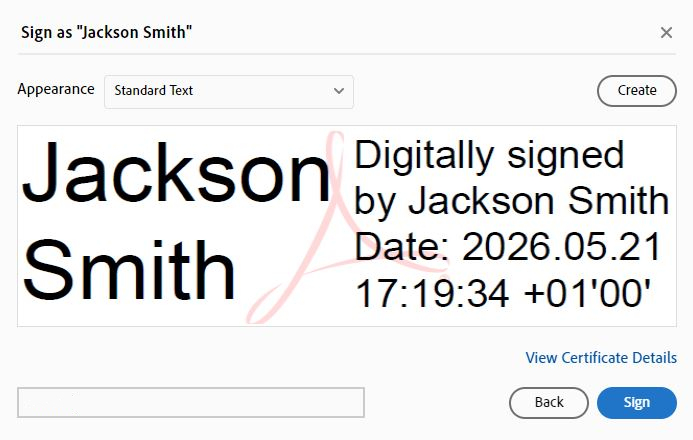
- Click/Select "Sign", making sure to save the file as a PDF, and email to the relevant shadowed MEG Operator for them to digitally sign/date.