Power Down Equipment
In fault situations, planned (UoB) power outages, or End-of-Day, equipment will need to be shutdown
NOTE: In normal, End-of-Day usage, not ALL equipment needs to be powered down.
NOTE: e.g. DO NOT power down IHR, Main Electronics, DACQ etc. on a daily basis!!! Stim PC, PROPixx Controller, KVM etc., to remain powered.
Powering Down the Internal Helium Recycler (IHR) (cabinet T3)
- In the IHR cabinet, keep the UPS power button pressed down for a few seconds.
- Turn the Main Power Switch on the cryocooler compressor is set to Off.
- the cryocooler shouldn't be running, but stop liquefaction first if it is
- Turn off the IHR Mains power (large red switch on the wall to the right of the cabinet).
Powering Down the Main Electronics Cabinet (cabinet T2)
NOTE: The Main Electronics Cabinet (T2) is protected by a UPS (UPS21), situated in the IHR tank room (G24).
The Power Control Panel of the Main Electronics Cabinet has three switches. These MUST be powered down in the correct sequence.
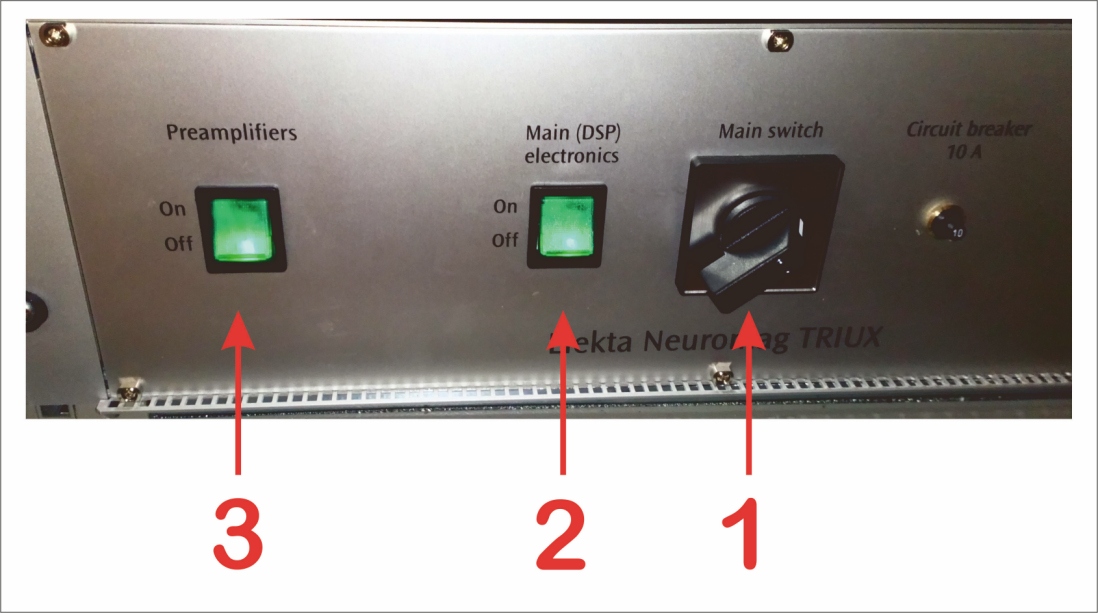
INDEX
1. Main switch (with no-mains release).
2. Main (DSP) Electronics (MEG & Bioamplifier/EEG) green rocker switch.
3. Preamplfiers (MEG & Bio/EEG) green rocker switch.
Procedure
- Switch off the Watchguard Firewall and Network Switch, in the Side Room Comms cabinet.
- Both Mains plugs are attached to sockets protected by UPS21. Make sure both socket switches are turned off.
- Switch off the Preamplifiers (3) rocker switch first, followed by the Main (DSP) Electronics rocker switch (2) from the Power Control Panel
- Turn the Main switch (1) on the Power Control Panel to Off position.
- This will turn off the ethernet switch, the roof fans, and the intercom.
It may take a while before the LED indicators go off. A Power Control Panel will not restart before all indicators are off.
- Power off the Eaton UPS, labelled UPS21, situated in the IHR Tank Room (G24).
- First power down equipment that is connected to the UPS (see above).
- Press and hold the On/Off button on the front panel for approximately three seconds.
The UPS starts to beep and shows a status of “UPS off pending”.
The UPS transfers to Standby mode (“UPS on standby”) (if utility power is available) and removes power to the equipment. The green Power On LED turns off. - The Watchguard Firewall and Network Switch, in the Side Room Comms cabinet, will also power down - if not switched off already.
- Switch off the Mains socket powering UPS21.
Powering Down the contents of the STIM Cabinet (cabinet T1) & MSR Lights/Lifting Motor
- Turn off equipment in the STIM Cabinet (T1) e.g. Digitimer Stimulator, via their power buttons/switches.
- Switch off the filtered 6way Mains extension (green rocker switch).
- This will power down the MSR Patient Camera/IR Light, and the STI102 box.
- Switch off the MSR Lighting UPS...
- Press the Power button on the front panel for 2 seconds, release at first beep.
- Switch off the Mains at the wall socket.
- Turn off the gantry lifting motor/traffic lights (Mains plug on the back wall, behind the MSR).
Powering Down DACQ & Participant Logging Computer (PLC)
NOTE: The DACQ and its speakers are plugged into Control Room double power sockets protected by a UPS (UPS20), situated in the IHR tank room (G24).
The PLC is plugged into the UPSs found on the floor of the Control Room (2 x APC Back-UPS 1400s).
Powering Down the DACQ Console, "Sinuhe"
- From Login Screen.
- Bottom right corner, left mouse click, select Shut Down.
- If logged In
- Exit Acquisition program, close Terminal windows etc.
- Bottom left corner, left click.
- Hover over Leave, select Shutdown
- Power off Monitor and Speakers.
- Switch off the Mains socket powering the DACQ, Monitor & Speakers.
Powering Down the Participant Logging Computer (PLC)
- Press the power button on the front of the PC.
- Power off the Monitor.
- Switch off the Mains sockets powering the PC and Monitor.
Power off the Eaton UPS, labelled "UPS20", in the IHR Tank Room
- Power off equipment that is connected to the UPS (see above).
- Press the On/Off button on the front panel for approximately three seconds.
- The UPS starts to beep and shows a status of “UPS off pending ...”
- The UPS transfers to Standby mode (“UPS on standby ...”) (if utility power is available) and removes power to the equipment. The green Power On LED turns off.
- Switch off the Mains socket powering the UPS.
Powering Down the Stim PC (CHBH-ST-MEG-W02)
- Shutdown the PC - as per usual for a Windows machine.
- Switch off the Monitor and PC Speakers.
- Switch off the PROPixx Controller.
- Switch off the SOUNDPixx Controller and its Speakers (if used).
- Switch off the KVM and Network mini hub.
- Shut down both APC Back-UPS 1400s.
- Press and hold the POWER button for at least 2 seconds. At the first beep, release the button and the UPS will turn off.
- A 2-second delay has been added to mitigate unintentional contact with the POWER button.
Make sure other equipment e.g. PROPixx Projector, EyeLink PC, is powered off BEFORE switching off the APCs.
- Press and hold the POWER button for at least 2 seconds. At the first beep, release the button and the UPS will turn off.
- Switch off the Mains sockets powering the APCs.
Powering Down the EyeLink 1000 Plus PC
- After Data Acquisition, select/click Exit Setup then either ...
- Select/click Exit Eyelink - exits back to the File Manager.
- Select/click red Shutdown button from the Toolbar.
- Or select/click Shutdown Host, the select/click YES.
- Select/click Exit Eyelink - exits back to the File Manager.
- Power off Monitor, then the 6-way bar plug on table - to ensure EyeLink camera is powered off.
- If an EyeLink battery was used, but a full powerdown is necessary - fault situation, planned power outage ...
- Turn off EyeLink battery, unplug power cables from battery and FO Camera Head/IR Illuminator. Tidy power cable as usual.
- Replace Camera Head lens cap, move FO Camera Head/IR Illuminator back to MSR white cabinet, carefully tidy up orange FO lead and place on cabinet shelf.
- Remove EyeLink battery from MSR and mark for charging when power restored - use usual piece of Micropore tape.
- Shut down both APC Back-UPS 1400s - if not done so already, see "Powering down the Stim PC ..., Step 6." above.
- Switch off the Mains sockets powering the APCs - if not done so already.